Troubleshoot Smart Bulbs: Easy Fixes to Restore Brightness Fast
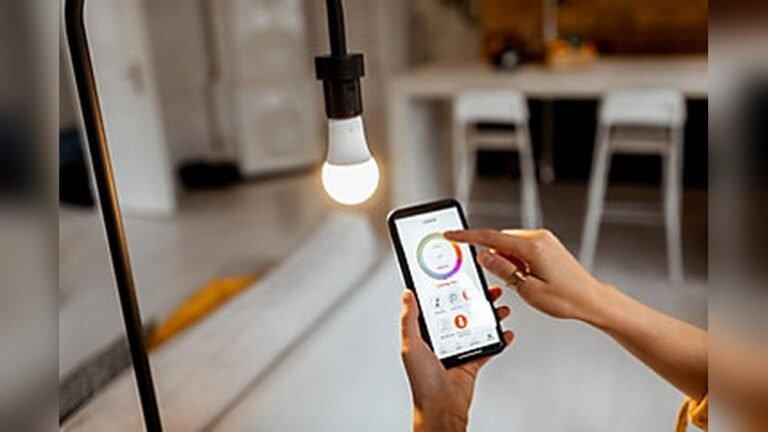
Smart bulbs are great for home lighting. But sometimes, they stop working. It can be hard to know why. This guide helps you fix smart bulbs fast and easy.
Why Are My Smart Bulbs Not Working?
When a smart bulb does not respond, it is often because of power or Wi-Fi issues. Sometimes the bulb or app needs a reset. Other times, the bulb may be broken.
First, check if the bulb has power. Then check the Wi-Fi connection. If both are okay, try restarting your router and the bulb. If these steps do not work, you may need to reset the bulb.
Step 1: Check Power and Wi-Fi
- Check Power: Is the light switch on? Is the bulb screwed in well?
- Check Wi-Fi: Is your Wi-Fi working? Are other devices connected?
If power or Wi-Fi is off, the bulb will not work. Fix these first.
Step 2: Restart Router and Bulb
Restarting can fix many problems. Follow these easy steps:
- Turn off your Wi-Fi router. Wait 30 seconds.
- Turn the router back on. Wait until it connects.
- Turn the bulb off and on a few times using the wall switch.
Sometimes toggling the bulb’s power helps it reconnect to Wi-Fi.
Credit: support.sengled.com
Step 3: Re-add the Bulb in the App
If the bulb still does not work, try removing it from your app and adding it again.
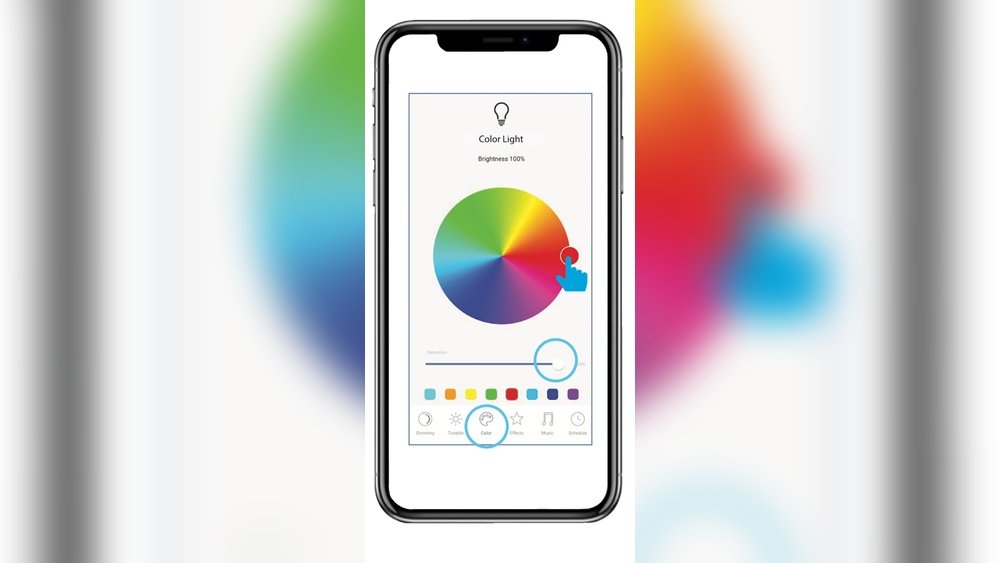
- Open the smart bulb app (like Alexa or Google Home).
- Go to device settings.
- Choose “Forget Device” or “Remove Device.”
- Follow the app instructions to add the bulb again.
You might need to reset the bulb first. See the next step.
Step 4: Factory Reset the Smart Bulb
Resetting your bulb restores it to the original settings. It often fixes tough problems.
How To Reset:
Turn the bulb’s power off and on quickly several times. The exact number and speed depend on the bulb brand.
For example, turn the switch off and on 5 times, each time waiting 1 second.
The bulb will blink or flash when it resets. Then, you can set it up again from the app.
After Reset:
- Open your smart bulb app.
- Add the device as if it is new.
- Follow all on-screen instructions.
This process is similar for most bulbs like Amazon Basics, Kasa, or Tapo.
Step 5: Update Apps and Firmware
Old apps or firmware can cause problems. Make sure you have the latest versions.
- Go to your phone’s app store.
- Check if the smart bulb app has updates.
- Open the app and check for firmware updates for the bulb.
Updating can fix bugs and improve connection.
Step 6: Check for Faulty Bulbs
If none of the above works, the bulb may be broken. Bulbs can fail from power surges or old age.
Try the bulb in another socket or room. If it still does not work, replace it.
Tips for Smooth Smart Bulb Use
- Keep your Wi-Fi strong and stable.
- Use bulbs compatible with your smart home system.
- Do not use dimmer switches unless the bulb supports it.
- Keep the bulb’s app updated.
Credit: www.aidot.com
Summary Table: Troubleshooting Smart Bulbs
| Problem | What to Check | How to Fix |
|---|---|---|
| Bulb not turning on | Power switch and bulb fitting | Turn switch on, screw bulb properly |
| Bulb not responding to app | Wi-Fi connection | Restart router, check Wi-Fi strength |
| Bulb lost from app | Device settings in app | Forget device, then re-add bulb |
| Bulb keeps disconnecting | Firmware and app versions | Update firmware and apps |
| Bulb flashes or blinks | Reset required | Perform factory reset with power toggle |
Video Help and More Resources
You can find helpful videos online. They show how to reset bulbs step by step. Search for your bulb brand with “reset smart bulb” on YouTube.
For example, “How to Reset Kasa Smart Light Bulb” or “Amazon Basics Light Bulb Reset” have clear guides.
Watching a video can make the process easier to understand.
Final Thoughts
Troubleshooting smart bulbs is simple if you follow steps one by one. Always check power and Wi-Fi first. Restart devices to refresh connections. Remove and re-add bulbs in the app. If needed, reset the bulb to factory settings.
Keep your apps and firmware updated. These small actions keep your bulbs working well. If the bulb is faulty, replace it with a new one.
With these tips, your smart bulbs will shine bright again.
Frequently Asked Questions
Why Are My Smart Bulbs Not Working?
Check the bulb’s power and ensure the switch is on. Verify Wi-Fi connection is stable. Restart your router and the bulb. Remove and re-add the bulb in the app. Perform a factory reset by toggling power rapidly if needed. Update apps and firmware regularly.
How To Reset Smart Light Bulbs?
To reset smart light bulbs, toggle the power switch rapidly 3-5 times until the bulb flashes. Then, open the companion app, remove the device, and add it again following on-screen instructions. Ensure the app and firmware are updated for best results.
Do Smart Light Bulbs Go Bad?
Smart light bulbs can go bad after long use or due to hardware failure. Resetting or updating firmware may fix issues. Replace if problems persist.
What Is The Lifespan Of A Smart Bulb?
Smart bulbs typically last between 15,000 to 25,000 hours depending on usage and brand quality. Regular updates help maintain performance.